

Every Google Photos User Should Check These 5 Settings Now
Google Photos offers more than photo storage and editing. Discover five useful settings that can improve photo sharing, privacy, browsing and your overall experience.

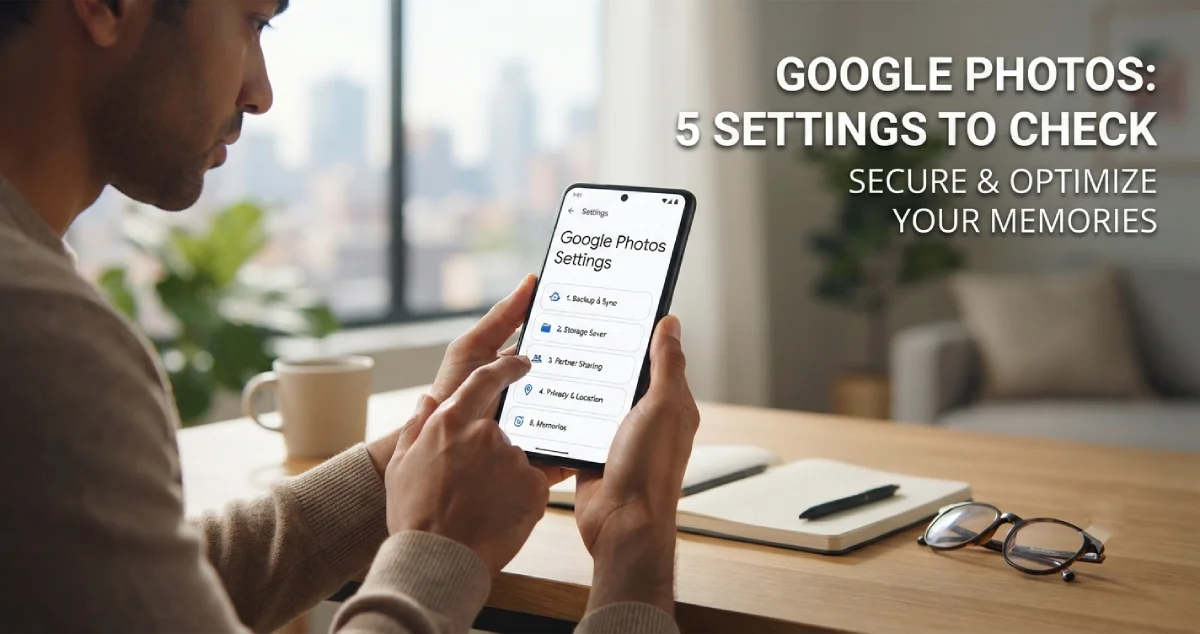
Every Google Photos User Should Check These 5 Settings Now
Google Photos has evolved into so much more than a repository for photos. It saves memories, aids in viewing and editing pictures, introduces people and pets and makes it easier to locate old pictures from thousands of files.
However, one thing that is not always known by the user is that there is a possibility that the default settings of the app are not the same as his.
Some may wish to have quicker photo sharing. Others may want greater control over the features of Gemini, or automatic playback of the pictures in their Memories. Google Photos can be improved to be easier and more comfortable to use with some easy changes.
Google Photos offers various handy settings that users should check out, according to a recent How-To Geek article. Here are five settings to check if you're frequently using Google Photos on Android!
1. Turning Off Quick Edit Before Sharing Photos
Ever click on a picture to post it to Google Photos to find Google Photos first bringing up an editing screen?
This is due to the Quick Edit feature. It enables the user to crop or do some enhancements before sharing a picture. This can be nice, but might seem like extra work if you're just sending a photo to a friend or family member.
How to turn it off:
-
Tap on Google Photos app on your Android phone.
-
Tap on any picture and then select Share.
-
Tap gear icon when the Quick Edit screen appears.
-
Select Turn off.
Alternatively, this feature can be controlled by app settings. The feature has been introduced in Android 14 and above.
2. Manage Gemini Features in Google Photos
Google is adding additional features powered by artificial intelligence to its apps, and that includes Google Photos.
Natural language search capabilities, like Ask Photos, can make it easy for users to find images in a user's photo library. You can ask questions to find specific pictures, rather than having to sift through albums by yourself. Other features powered by the Gemini include narration & suggestions for the titles.
But not everyone is in favor of all of the AI capabilities.
Treatment of these features:
-
Open Google Photos.
-
Tap on your profile picture.
-
Click on Photos settings.
-
Open Preferences.
-
Click Select Gemini in Photos.
-
Add, disable, and remove individual features as desired.
Another one is the option of Google using your queries for service improvement; you can read about that here. Before making decisions on what to share, review the controls available.
3. Face Grouping to Find Old Photos Easily
This feature allows users to locate their old photos through Face Grouping.
Suppose you are searching for a family portrait made a couple of years back. You can recall those involved, but can't recall the date or the album.
That's where the Group similar faces feature can come in handy.
Google Photos can find and merge photos that may contain the same person or pet. These groups can then be given names and photos can be more easily found that have been related to them.
How to enable it:
-
Tap on Google Photos and your profile picture.
-
Select Photos settings.
-
Open Preferences.
-
Click on Groups of Faces that are similar.
-
Switch on the function.
Once grouped, go to Collections and then to People & pets, and label faces.
Please keep in mind the number of face groups available in different regions and accounts. Consider any privacy issues associated with the feature before using it.
4. Disable Autoplay in the Photo Grid
You're searching through your photo gallery and can't find a specific photo. Suddenly, videos and videos display automatically, and motion photos automatically show up.
It may be a minor problem, but when there's constant movement, then browsing can be distracting. It can also connect to mobile data when you don't have WiFi available.
You can manage this behaviour with Google Photos.
To turn off autoplay:
-
Open Google Photos.
-
Click on your profile image.
-
Click on Photos settings.
-
Open Preferences.
-
Choose the Playback option: Photo grid.
-
Stop autoplay of video and motion photos.
It is possible to play any video manually at any time. This is simply to provide you more control over what is going on when you are browsing your library.
5. Exclude Certain People and Pets From Your Memories
You can see the option to hide certain people and pets from Memories.
Google Photos will automatically make memories from photos and videos in the Library. These highlights can evoke happy moments, family moments and old trips.
But all of the pictures and people don't have to be in your memories. Occasionally, you might not want to see pictures of a specific person or pet in auto-under Exposure.
You can find controls in Google Photos on how to manage which people and pets are in Memories.
For this setting, the management is:
-
Open Google Photos.
-
Tap into your profile picture.
-
Select Photos settings.
-
Open Preferences.
-
Tap Memories.
-
Check to see if there is an option to hide people and pets.
-
Choose the ones that you don't want to be remembered.
This could vary depending on your account and version of the app.
Bonus: Check Your Backup Quality
Outside of these five settings, there's one additional point that every Google Photos user should take a look at: Backup quality.
Google Photos has several backup settings, such as Original quality, and Storage saver. Original quality preserves photos and videos at their actual resolution; Storage saver compresses eligible photos and videos to save space.
All Google Accounts come with up to 15 GB of storage that is combined in Google Photos, Gmail, and Google Drive.
To look at the quality of your backups:
-
Open Google Photos.
-
Tap on your profile photo.
-
Select Photos settings.
-
Open Backup.
-
Look at the Backup quality option.
-
Select the setting based on the volume of storage you require, and the importance of original image quality to you.
Final Thoughts
With Google Photos, organizing thousands of photos can become a lot easier, but there are some great features that are buried in the settings.
These very subtle functions can enhance your daily usage from controlling Quick Edit and Gemini features to managing face groups, autoplay and Memories.
No need to set all the options. Have a look at them and select the ones that fit you.
Your photo library should be as you want it to, after all.















Comments (0)